In this tutorial, we demonstrate how to work with entity and field names that already exist in the model and have been deployed in the database. The tutorial is based on the Task Manager tutorial application.
To be clear — in general, we strongly advise against renaming entities or fields in real projects; it is always better to avoid doing so. However, if a situation truly requires it, or if you simply want to experiment in a testing project, the following procedure describes how to proceed.
Initial analysis
Before renaming anything, you need to identify all relevant impacts and dependencies. ORIGAM provides two functions for this purpose:
- Find Dependencies
- Find References
If you right-click a database entity, for example, you will see these options:
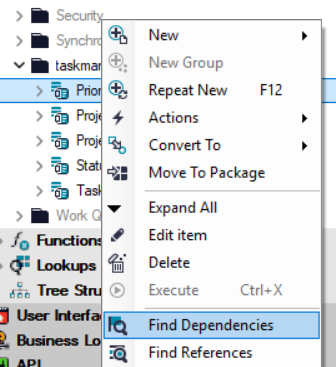
The first function shows what the selected element depends on. In the case of database entities, this typically includes the base system entity iOrigamEntity2.
For renaming entities, you will mainly use the second function, Find References, which displays all elements that reference the object you intend to rename. For example:
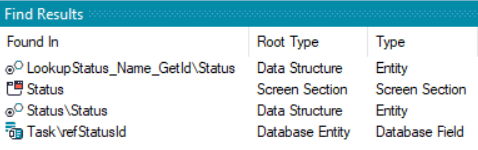
In the case of a database field, there are usually multiple dependencies, since fields are used in many model elements:
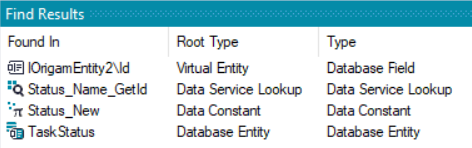
These are the model elements that must be updated after the name change. In addition, there are indirect dependencies not shown here, and — very importantly — the related tables and columns in the database.
If there are too many dependencies, you may want to reconsider the renaming, as each dependency represents a required modification.
Model element name changes
Renaming an element in the Model Browser is technically the simplest part of the process — just click the name and change it.
In this example, we rename the entity Status to TaskStatus and the field Task.refStatusId to Task.refTaskStatusId.
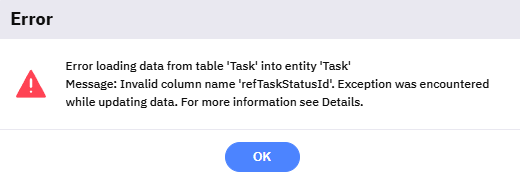
Immediately after performing such a change, the application becomes inconsistent. If you attempt to open a form related to the renamed entity in the client application, you will encounter an error:

A similar situation occurs when renaming a field:
Let’s fix this step by step.
Database object name changes
The first issue to resolve is the database. Referencing a non-existing table or column is a critical problem.
In principle, you have two options — perform the change manually or use a deployment script. The recommended approach is clear, but for testing purposes you may also try the manual method.
Manual procedure
Below is an example SQL script for renaming a table in MS SQL Server. You can execute it directly in the database query tool:
USE [taskman];
GO
EXEC sp_rename 'dbo.Status', 'TaskStatus';
GO
Similarly, to rename a database column:
USE [taskman];
GO
EXEC sp_rename
    'dbo.Task.refStatusId',
    'refTaskStatusId',
    'COLUMN';
GO
Using deployment scripts
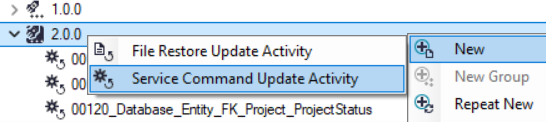
To ensure that the change is propagated to all database instances associated with the application model, you should create a new Service Command Update Activity:
When using a deployment script within the model, you do not need the USE or GO commands:
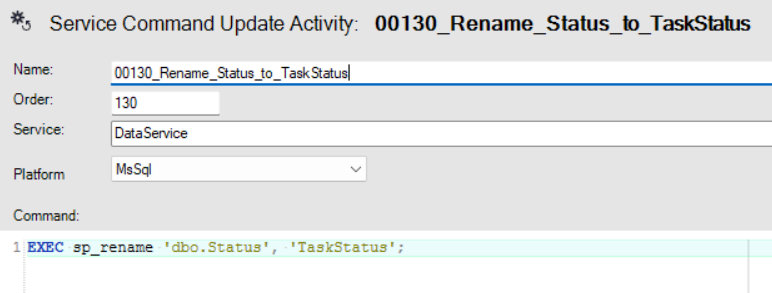
Be sure to provide the script with a meaningful name.
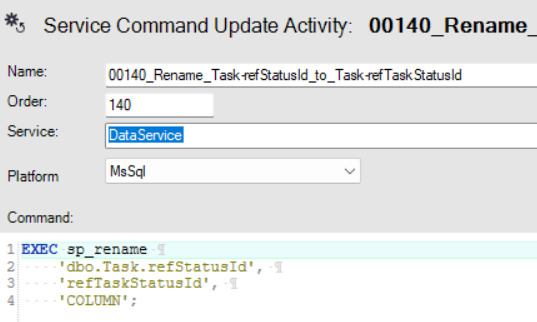
The same approach applies to renaming a database column:
After renaming an entity, updating the corresponding table name in the database is usually sufficient for the application to run again.
Renaming a field is typically more complex, as field names are referenced in many other model elements (lookups, data structures, constants, etc.), especially if the field represents a foreign key, as in our example.
Model adaptation
After renaming a model element, you must update all dependencies. There are two main reasons:
- To maintain model consistency — model elements are technically referenced by their unique IDs (GUIDs), so functionality is preserved.
- To maintain clear and consistent naming — updating names across interdependent elements improves model readability and navigation.
Based on the initial analysis, here are the elements that need to be updated after renaming the database entity:
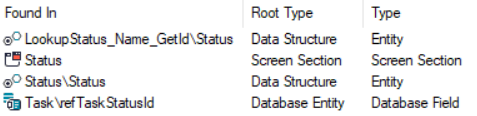
And similarly for the database field:
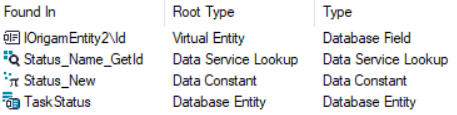
You now need to go through these elements one by one and update them to reflect the new names. Start with the field, as it is a sub-element of the entity.
Database field
There are three elements to update here — a lookup, its related data structure, and a data constant. Double-clicking them in the Find Results tab will navigate you to their location in the Model Browser.
First update the data structure used by the lookup, then update the lookup itself, and finally the constant.
Database entity
Next, update the data structure Status \ Status to TaskStatus \ TaskStatus, meaning both the data structure and its entity must be renamed.
After that, review the lookups referencing this entity and update their underlying data structures accordingly.
Finally, update the screen sections related to Status (now TaskStatus) and Task, as well as all screens where these sections are used.
Renamed fields in screen sections should be removed and added again. Besides adjusting names and labels, remember to update any associated lookups.
In the screens, you must also reset the correct DataMember and DataSource values in the Data section located under the Properties tab.
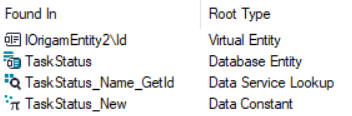
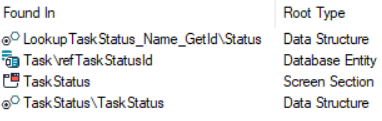
After completing the updates, the dependencies may look like this:
Other model elements
Some dependencies are indirect and therefore not visible in the dependency/reference search. Examples include:
- Menu screen reference — rename
StatustoTask Status - Roles — create a new role
FRM_TaskStatusinstead of renaming the existingFRM_Status - Application roles in the client application — assign the new role(s) to users
- XSL Transformations
You can find all other existing dependencies and locations where the element still retains its original name by using the Search function: enter the original name of the element and search for it throughout the entire model. If the original name is found only in the deployment scripts — where it is okay to be — then your renaming should be complete.
After updating all these elements, you may reach the end of the process. If the application runs without errors and all related screens function correctly, the renaming was successful.
If issues persist, you will need to fix all existing errors.
Conclusion
After completing this tutorial, you should have a clear understanding of what is involved in renaming entities or fields.
Recognizing the complexity of the process may encourage you to avoid such changes in production projects. However, experimenting in a test project can provide valuable insight into how ORIGAM works — particularly how the model elements are interconnected and how they relate to the database.
In some cases, it may ultimately be easier to rebuild certain parts from scratch rather than rename existing elements.