Here we will provide all the information related to the transition to HTML Architect.
Our current plan is to launch the HTML Architect in its first version, which will include everything necessary for basic work, including the most commonly used Actions, and discontinue development of the desktop version of Architect by the end of 2026.
Going forward, development will focus exclusively on HTML Architect, bringing it fully in line with the desktop version of Architect (1:1), and then on developing entirely new features and DEVX enhancements.
HTML Architect has so far two components:
- The Architect itself running in a separate Docker container and dedicated just to one project
- Docker Composer for creation of a development environment and management of the project
HTML Architect
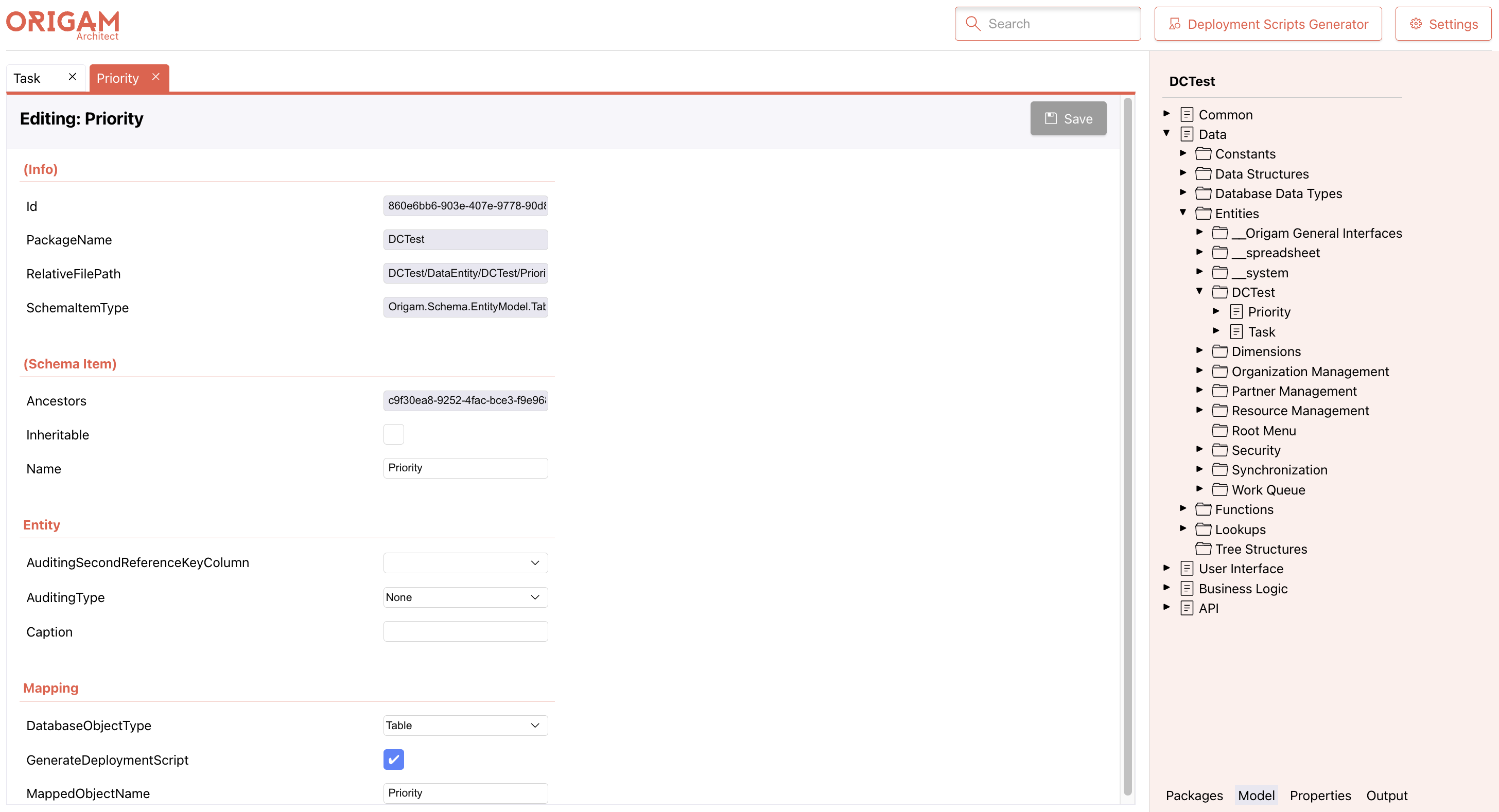
The new Architect has a different visual design, but otherwise it should work similarly to the desktop app; only some features are missing.
Docker Composer
Docker Composer is a command-line utility which allows you to launch the entire Origam development environment in one Docker stack, including creating a new project, using one Git and one Docker command. It has several functions:
Manage Origam projects
- Create a new project using Project Composer sub-utility (phase 1)
- Download an existing project (phase 2)
- Update an existing project (phase 3)
Compose and run Docker containers
- Composer itself
- Server
- Architect
- Database server (optional)
Before you run the scripts please make sure no other Docker container is running on any of the ports that will be used:
- 443 – Origam Server
- 8081 – Origam Architect
- 1433 – MSSQL
- 5432 – PostgreSQL
For more information about this utility, see the README.
Sample scripts
Cloning a Git repository
The following script for both macOS and MS Windows will create a sub folder and copy some files to it including a Docker Compose yml file:
git clone https://github.com/origam/origam-template.git MySubFolder
cd MySubFolder
Creating and running Docker containers
Once the repo is cloned in your local folder go to it and run one of the following scripts. In principle you have these options:
- Have the script create a new DB server in a separate Docker container or use your existing database server
- Use MSSQL or PostgreSQL DB server
Here are some examples of MSSQL scripts:
Setup with a new MSSQL Server for macOS terminal
export DB_TYPE=mssql; \
export DB_HOST=mssql; \
export DB_PORT=1433; \
export DB_NAME=MyProject; \
export DB_USERNAME=sa; \
export DB_PASSWORD='MyStrongPassword1'; \
export PROJECT_NAME=MyProject; \
export ADMIN_USERNAME=admin; \
export ADMIN_PASSWORD=MyStrongPassword2; \
export ADMIN_EMAIL="user@advantages.cz"
export COMPOSE_PROFILES=$DB_TYPE,linux; \
docker compose up
Setup using an existing MSSQL Serveru for macOS terminal
export DB_TYPE=mssql; \
export DB_HOST=host.docker.internal; \
export DB_PORT=1433; \
export DB_NAME=MyProject; \
export DB_USERNAME=sa; \
export DB_PASSWORD='MyStrongPassword1'; \
export PROJECT_NAME=MyProject; \
export ADMIN_USERNAME=admin; \
export ADMIN_PASSWORD=MyStrongPassword2; \
export ADMIN_EMAIL="user@advantages.cz"
export COMPOSE_PROFILES=linux; \
docker compose up
Setup with a new MSSQL Server for MS Windows CMD
set DB_TYPE=mssql && set DB_HOST=mssql && set DB_PORT=1433 && set DB_NAME=MyProject && set DB_USERNAME=sa && set DB_PASSWORD=MyStrongPassword1 && set PROJECT_NAME=MyProject && set ADMIN_USERNAME=admin && set ADMIN_PASSWORD=MyStrongPassword2 && set ADMIN_EMAIL=user@advantages.cz && set COMPOSE_PROFILES=%DB_TYPE%,linux && docker compose up
Setup using an existing MSSQL Serveru for MS Windows CMD
set DB_TYPE=mssql && set DB_HOST=host.docker.internal&& set DB_PORT=1433 && set DB_NAME=MyProject && set DB_USERNAME=sa && set DB_PASSWORD=MyStrongPassword1 && set PROJECT_NAME=MyProject && set ADMIN_USERNAME=admin && set ADMIN_PASSWORD=MyStrongPassword2 && set ADMIN_EMAIL=user@advantages.cz && set COMPOSE_PROFILES=linux && docker compose up
After the setup finishes, you can access the following applications:
- Server: https://localhost:443
- Architect: http://localhost:8081