The 2026.9 release adds Origam AI, an assistant in the HTML Architect that creates and changes model items from a description of what you need. The HTML Architect also gets a model validator, more widgets for screens and screen sections, and model tree editing. The isolation level of the server’s database transactions can now be set in appsettings, and a data structure is loaded in one transaction so the parts of a screen agree with each other.
Version: 2026.9.0.4395
Released on: 2026-10-15T10:43:00Z
Origam
New features
Database transaction isolation level (#4913)
Database:IsolationLevel in appsettings sets the isolation level of the server’s database transactions. It defaults to ReadCommitted and accepts ReadUncommitted, RepeatableRead, Serializable, and Snapshot; any other value raises an error naming it. The value goes to the database unchanged, so use a level it supports. On SQL Server, Snapshot additionally requires snapshot isolation enabled on the database, and data access stops with a message naming the database when it is not.
Loading a data structure now runs all of its queries in one transaction, so records loaded into one screen see one consistent state. This fixes occasional data load failures.
Bug fixes
- Public links ended with 401 on servers where the private API authenticates with tokens. Public links open for anonymous visitors now, private ones still require a token, and web reports opened from the menu authenticate with the login cookie instead of failing with 401 (#4885, #4904).
- Tables could come back blank after switching between Origam tabs, until the window was resized. Grids repaint when their drawing surface changes size now (#4822).
- Refreshing a screen after a failed save was blocked, so the data could not be reloaded. Refresh reloads the screen without the failed changes; edits that could not be saved are dropped, and the reason appears in the browser console (#3893).
- Records loaded by a UI action were treated as newly created, so their created time and created-by were overwritten. Loaded records keep their original values now. Records copied by a UI action still get fresh ones; that part is a model change in the Root package, now 6.0.0, which a project picks up with its package update (#4969).
- Validation exceptions raised by workflow rules were written to the error log even when debug logging was off, filling it with ordinary rule rejections. They are logged at debug level now (#4811).
HTML Architect
New features
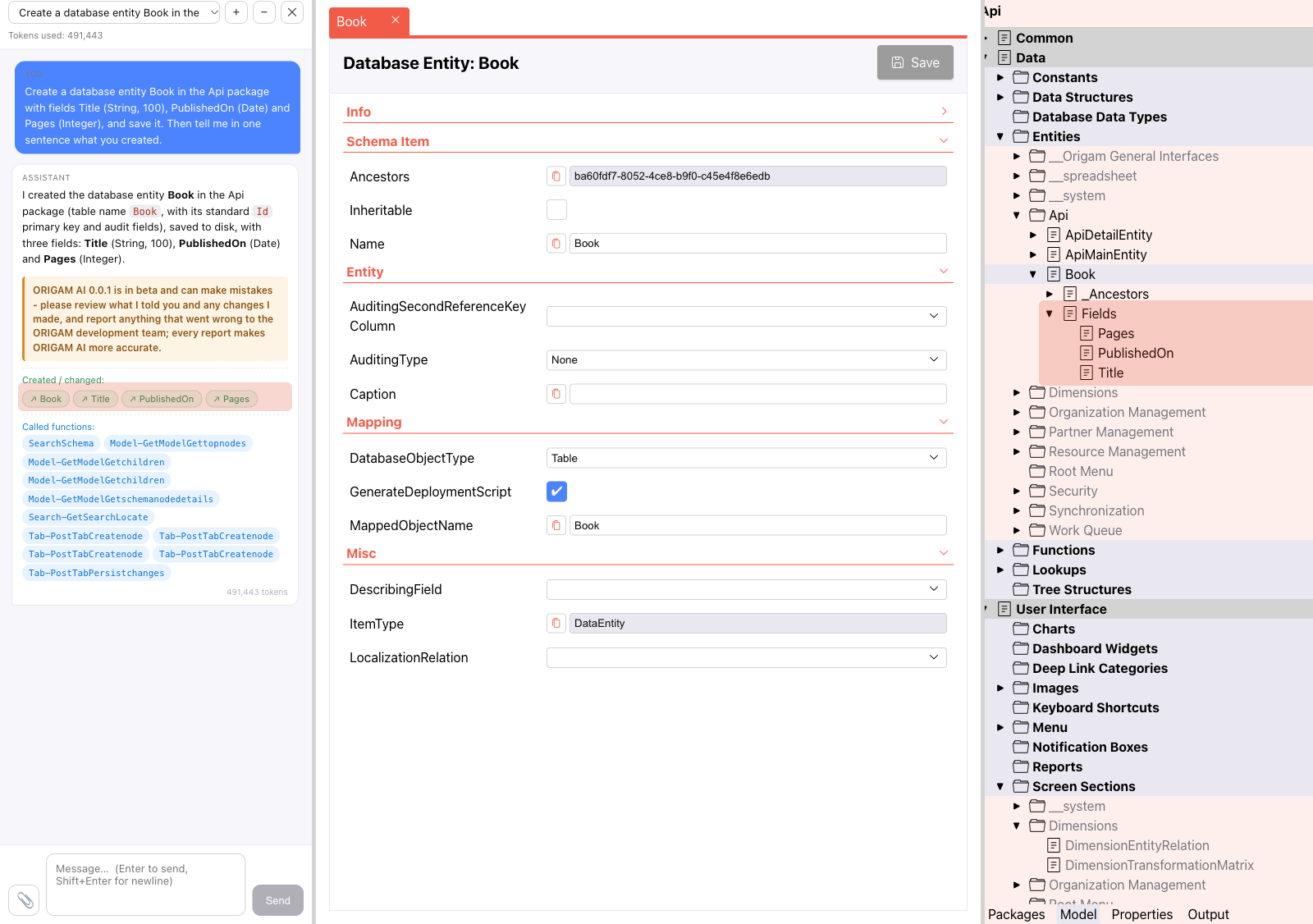
Origam AI (#4708)
A chat panel on the left side of the HTML Architect, next to the editors, answers questions about the model and makes changes to it, for example an entity with its fields, a lookup, or a screen. It works through the Architect’s own API, so results appear in the model tree and editors like any other edit. It can look up schema details and search ORIGAM Community. Conversations are kept on the server, one thread per chat, and can be reopened or deleted in the panel; images can be attached, and a reply can be stopped while it runs. The assistant introduces itself as ORIGAM AI 0.0.1, an early beta, and asks you to review its changes and report anything that went wrong.
AI settings, opened from the chevron next to the AI button, show the endpoint’s host and the model, hold custom instructions for the assistant, and switch tool groups on and off.
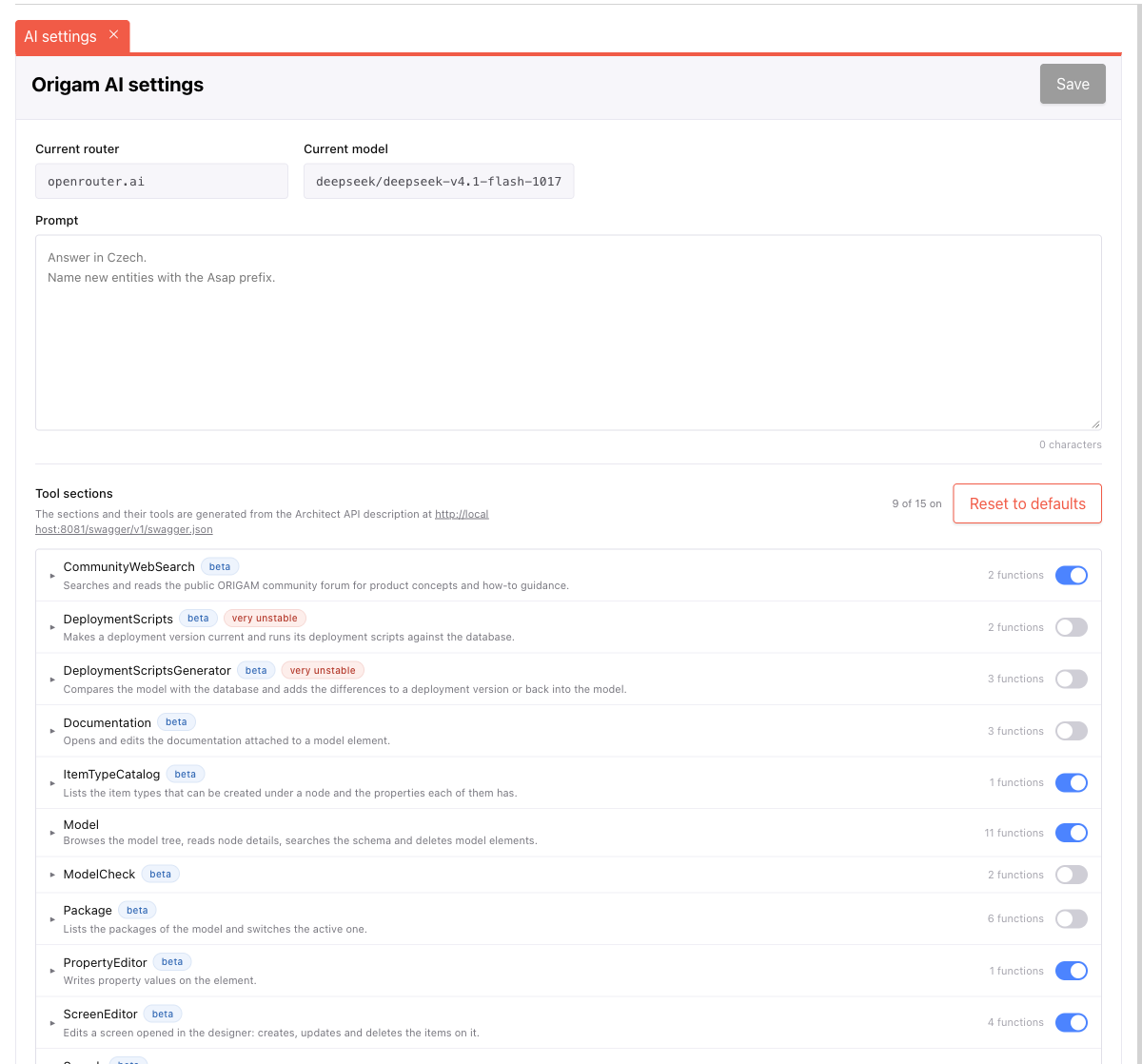
The assistant talks to OpenAI’s Responses API. Point it at a model with Ai:Endpoint, Ai:Model and Ai:ApiKey in the Architect server’s appsettings and restart it; the service behind the endpoint has to implement that API, so a provider that only offers the older chat-completions API does not work. Without a key the panel says so instead of answering.
Model validator (#4796)
Validate model in the top bar runs the model rules and the checks on the model files on demand. The results open in a Model validator tab: rule violations, and file problems such as references to items that no longer exist, orphaned files, and objects stored in a file with a different name. The summary counts the problems and the button shows the result of the last run. A run needs an active package, and one runs at a time. A defect in one part of the model no longer stops the other checks, and it no longer breaks search. See Model validator.
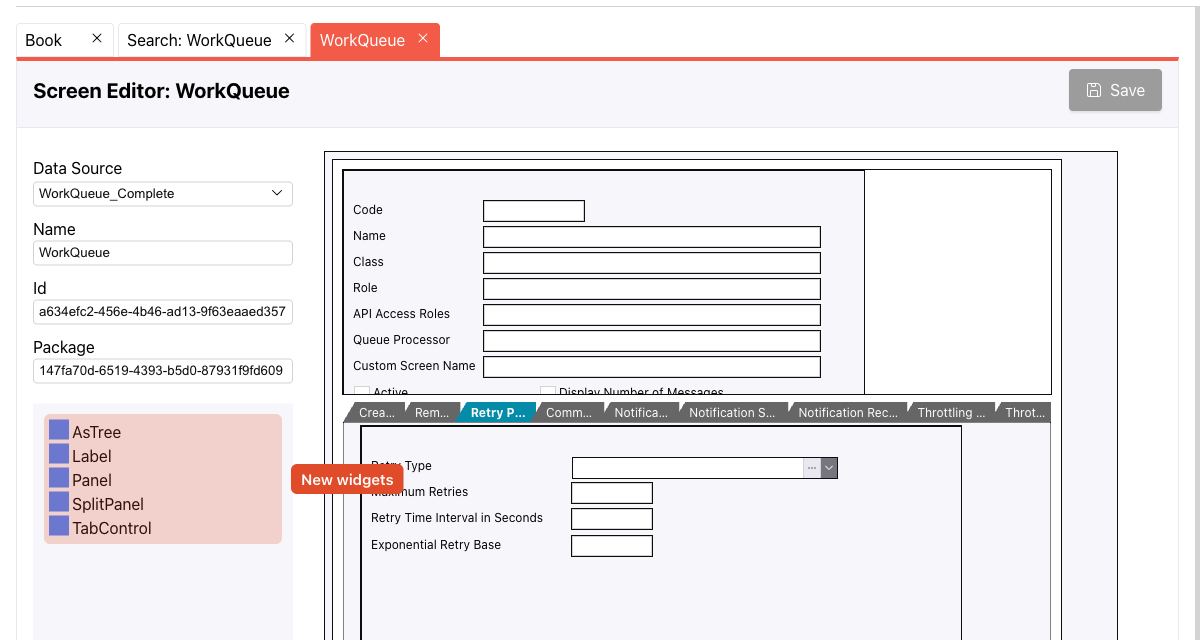
Screen widgets (#4884)
The screen designer can add SplitPanel, TabControl with pages, Panel, Label, and AsTree, together with screen sections and plugin widgets. A widget goes into the screen itself, a SplitPanel, a Panel, or a tab page, and can be moved between them. The designer lays the widgets out, and reports the problems that would keep the screen from opening: more than one widget placed directly on the screen, a screen section whose data member is not in the screen’s data structure, a SplitPanel without two children, or an AsTree without its key, parent, and name columns. Saving is blocked while any of these problems remains. See Screen widgets missing.
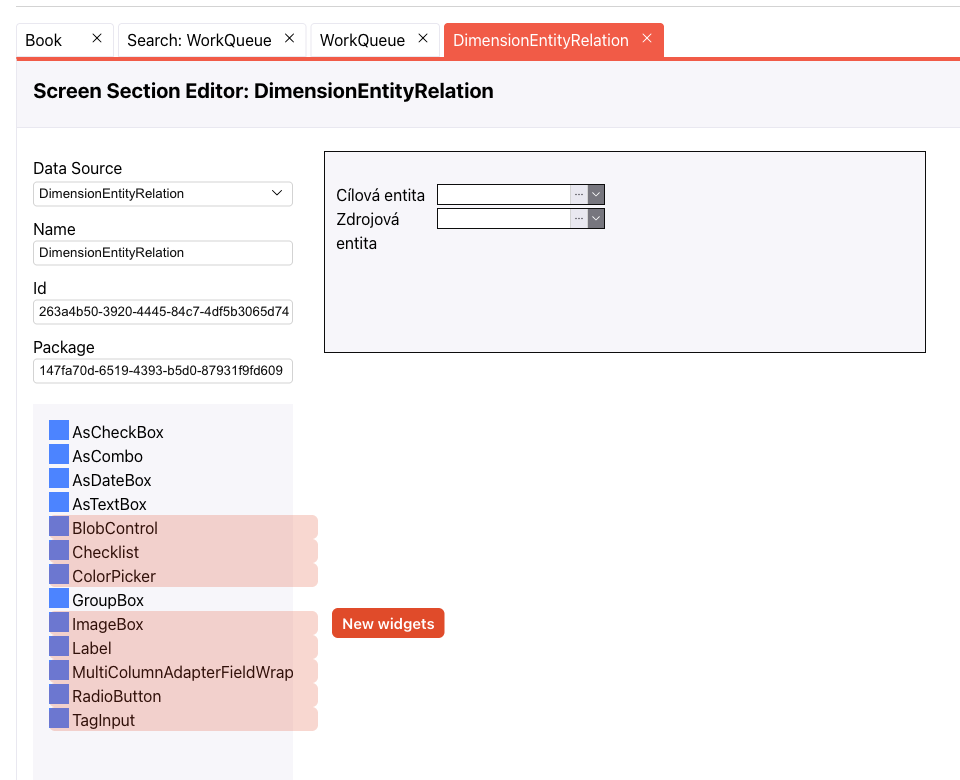
Screen section widgets (#4841)
The screen section designer gains the widget types it was missing: TagInput, Checklist, BlobControl for uploads, ImageBox, ColorPicker, RadioButton, MultiColumnAdapterFieldWrapper for switching between widgets by field value, and Label for captions. They join the text box, date, check box, drop-down, and group box. Drag a field from the Fields tab and a widget from the Widgets tab onto the section, and the designer binds them. It reports a widget that is not bound to a field, a widget whose settings are incomplete (a drop-down without a Lookup, a radio button without a Value Constant), and a field the screen showing the section has no data source for. The section cannot be saved while the warnings are open. See Screen section widgets missing.
Move and copy model tree items (#4720)
Right-click an item for Cut, Copy, Paste, and Move to…, or drag it onto another node, holding Ctrl or Cmd to copy. Hovering over a collapsed node opens it. Move to… asks for the target package and item; only items of the active package can be moved, items from other packages can be copied, and the move is refused when it would put an item outside the packages its references require. A copy is named “Copy of …”, with a number when that name is taken. Moving first asks whether to save the changes open in the editors.
Packages (#4968)
The Packages tab can create, delete, and reference packages. New Package validates the name, Delete removes the package together with its folder from the model, and References on the active package adds and removes the packages it depends on. Deleting a package that another package references is refused, and a reference that would make a cycle is flagged. See Creating and deleting packages.
XSLT input parameters (#4960, #4975)
The transformation editor’s Input Parameters tab lists the xsl:param names the XSL declares. Picking one shows its type and its value in an XML editor; a value that does not fit the declared type is reported in the output panel. When the XSL declares no parameters the tab explains how to add them. Validate reports its result as a toast now and switches the sidebar to the output (#4945). See Add input parameters to XSLT editor and Transformation validation.
Transformation parameters in workflow (#4891)
On a service method call task that runs a transformation, the New menu on Parameters offers each parameter the transformation declares, by name. Creating a parameter from that entry fills in its name, so it matches the XSLT parameter without a second edit. Parameters that already exist are left out of the menu. See Support for transformation parameters in workflow.
Open a referenced item from the property editor (#4967)
A property that points to another model item has an Open button next to its value when the property can be edited. It opens that item in its editor and highlights it in the model tree. See Adding links to property editor.
Create a menu item from a data constant (#4943)
In the tree’s Actions menu, Create Menu Item on a data constant opens a wizard that asks for the caption and the role and shows what it will create before adding a Data Constant Reference menu item under the Main Menu. See Create Menu Item from Constant wizard.
Show SQL for a filter set (#4921)
In the tree’s Actions menu, Show SQL on a data structure filter set opens the SQL generated for it in a tab. See Show SQL action.
Mandatory fields in bold (#4858)
Entity fields that do not allow nulls are shown in bold in the model tree, and the weight follows the setting as soon as the field is saved. See Mandatory fields in the tree.
Swagger in release deployments (#4886)
The Architect Server serves its Swagger UI and API description at /swagger in every environment, not only in development. Origam AI reads that description to learn which operations it can call, so it now also works against a release build. The Architect Server has no authentication of its own, so this publishes the full list of its operations, including the ones that change the model. Keep it on a network where the Architect is meant to be reachable, or block /swagger at the proxy if the description should stay hidden. See Open Swagger for Release Mode.
Bug fixes
- The editor header kept the old name after an object was renamed and saved. It follows the saved name now (#4988).
- Typing in the transformation editor or in a deployment script could jump the caret to the end of the text. Edits are collected and sent after typing pauses, and Save, Validate, and Transform send the pending text first (#4944).
- The data constant editor could not be opened. It opens now, the Value field follows the constant’s data type, with a drop-down for Boolean and for constants bound to a lookup, and a value that does not match the type or a duplicate constant name is reported instead of being saved (#4820). See Cannot open a Data Constant editor.
- Renaming an item and saving left the old name in the model tree (#4868). The tree shows the new name as soon as the item is saved, without reopening the package. See Tree doesn’t reflect change of object name and tree node not refreshed after saving.
- A new transformation or a new rule opened empty. It starts from the template the desktop Architect uses, including the rule exception template (#4859). See New transformation is not initialized with template code.
- An optional list filter picked by mistake in the Create Lookup wizard can be cleared again (#4823). See cannot delete an optional filter.
- Deployment versions were sorted by name in the model tree, so 1.10.0 came before 1.2.0. They are sorted by version number (#4852). See Deployment version sorting.
- The tree context menu closes after Paste (#4961).
- Toast messages now sit above the bottom editor tabs instead of covering them (#4976). See Toast message blocking important tabs.