This article shows how to fine-tune various UX/UI details in your client application by editing its model. Additional settings options will be gradually added here.
Date field format in the form grid view
If you want to switch from this
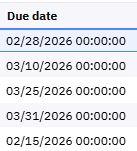
to this
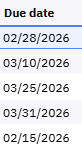
go to the screen section where the date field is located and change the Format property to Short or any other format you prefer:
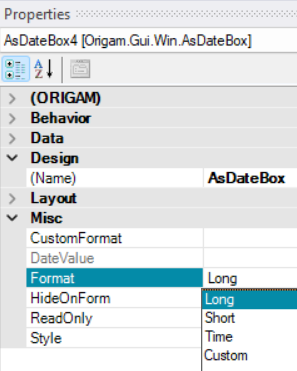
To have both the date and time without seconds, set Format property to Custom and fill CustomFormat property with the desired date format, e.g. MM/dd/yyyy HH:mm. More on custom date and time formats can be found here.
Default order of form columns
If you want to place columns in a form (both in grid view and form view) in a specific order, you need to change the TabIndex property of the fields in the screen section where they are used.
TabIndex determines the order in which you navigate through the fields in form view using the Tab key, as well as the order in which they are displayed in the grid view.
To change the order, go to your screen section. There you can either set it manually for each element in Properties, or in the editor click on the screen section and press Ctrl + Shift + T (in Microsoft Windows). White numbers with a blue background will appear in the top-left corner of each element. Click the elements in the desired order (already selected elements will change to a blue number with a white background), and then press Ctrl + Shift + T again.
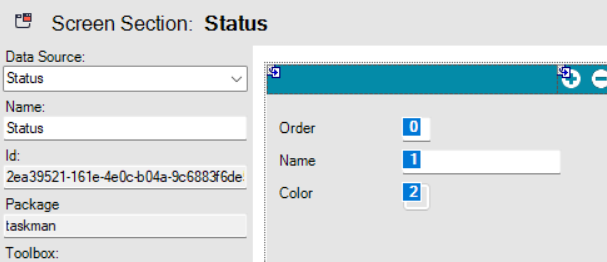
If there is any issue with the order or another problem with the columns, e.g. when you add a new column and it shows in the last place, you can reset the configuration. Right-click the screen menu item and choose Reset Column Configuration.
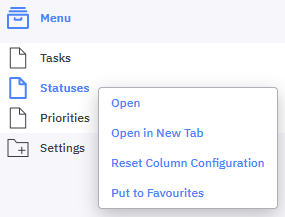
This configuration is saved in the database in the table OrigamPanelColumnConfig. More information about this can be found here.